Showing posts with label others tips and tricks. Show all posts

Thursday, February 14, 2013

CPX Interactive one of the largest CPM ad networks to monetize your site. Hi friends as we already posted an article Best alternatives to adbrite so in that post we reviewed some good ad network which can approve you site easily with no minimum traffic requirement but now let me tell you if you have nice traffic then you can apply to some best CPM ad networks like Tribal Fusion, Advertising.com, ValueClick Media, CPX Interactive etc. So today in this article we are going to provide you with brief details on how to apply and what are the minimum requirement to get approved by one of the largest CPM ad networks known as CPX Interactive that deliver more than 3 billion daily ad impressions across every platform in more than 60 countries.

CPX Interactive one of the largest CPM ad networks
So before proceeding on how to apply and what are the minimum traffic requirements to become publisher of CPX Interactive ad networks lets have look on some of the features that CPX Interactive offers when you get approved and become publisher. The main plus point of becoming cpx publisher is ability to select alternative third-party ad networks to work with, along with their own network. As a CPX publishers you will get dashboard that shows real time reporting and also have traffic analysis tools. CPX Interactive is mainly CPM advertising network but also supports CPC, CPL and CPA models. CPX Interactive offer a wide variety of ads including banner display, pop-up, pop-under, and video pop-ups

Size of banner display from CPX Interactive for displaying ads:

  • 728×90   Leaderboard
  • 120×600 Skyscraper
  • 160×600 Skyscraper
  • 300×250 Cube
  • 180×150 Rectangle 
  • 720×300 Pop-Under
  • 425×600 Pop-Up 
  • 430×600 Pop-Up 
  • 640×480 Video Pop
  • 300×250 Video Cube
PLUS many mobile and custom sizes including video and interactive expanding units

Mode of payment: CPX Interactive pays on a net-45 basis
Paypal
Check
The minimum threshold is $100

Join CPX Interactive:
So if you want to join CPX Interactive as a publisher minimum traffic requirement for a site is 30,000 or more unique impressions per month and your site must be on top level domain example (www.example.com) Signing up is quite easy and after your site get reviewed by CPX Interactive and ready to get approved then you will you have to prove that your site have at least 30,000 unique impressions per month and your privacy policy is aligned to comply with CPX’s data use policy.
Next we will try to add some more.

To receive latest update from us like our  facebook page Techweem

Read More
Hi friends as we all know that White-Kernel V:1.3.3 is the latest version of this kernel for galaxy y and we have already posted an article on how to install White-Kernel V:1.3.3 on Samsung galaxy y but here we are going to post an installation instruction of White-Kernel V:1.0.1 using cwm recovery mode. As this version was not the final version and may have some bugs but if you have no access to computer you cannot install White-Kernel V:1.3.3 which is a .tar file so White-Kernel V:1.0.1 is a zip pack and can be installed directly on galaxy y using Cwm recovery. This kernel is developed by the member of XDA whitexp so don't forget to thanks him. So lets proceed on how to install White-Kernel on galaxy y without Odin and PC or computer.
White-Kernel installed directly on galaxy y using Cwm recovery
Warnings:
This Custom Rom is only meant for Samsung galaxy y model gt-s5360. Use it at your own Risk we will not be held responsible for any damage happens your device. This information is provided only for instructional and educational purpose.

Requirement:
A rooted Samsung galaxy y.
Kernel File:(not mirrored) white.1.0.1.zip
size:4.73 MB
CWM: CWM.zip

Installation Instruction:
  • First of all backup your system and Charge battery full.
  • Download and place all the files cwm and white1.0.1.zip in the root directory of yours phone sd card and turn off your phone.
  • Now reboot in Recovery mode by pressing Volume up + Menu + power button together.
  • When you enter recovery mode touchscreen will become function less so use volume up and down to move up and down menu as selection and power button as back.
  • Now from recovery mode menu select " Apply update from sdcard" and select clockworkmod recovery file "CWM.zip" after you enter CWM Recovery 
  • Then in recovery mode select Install zip From SDcard. 
  • Then select Choose Zip from SDCARD navigate to root directory and select the ROM file "white1.0.1.zip" file then wait for the installation to be completed.
  • After installation completes reboot your phone.
Congratulation! you have learn how to install White-Kernel on Samsung Galaxy Y S5360 in CWM mode using zip file. For latest update visit thread page .

To receive latest update from us like our facebook page Techweem

Read More

Tuesday, February 5, 2013

Hi friends Google PageRank has been updated today, the last PageRank was updated in November 2012 So this is the first Google PageRank update of 2013 as we can see that Google is updating page rank quarterly means at the difference of three months so we can hope that the next page rank will be in May 2013. So if you want to check latest page Rank of your Site or blog you can check using Google Toolbar or there are many sites that will do it for you for your. Example
Google PageRank updates by years and months detail:

Page rank update in 2013
  • February 2013
Page rank update in 2012
  • November 2012
  • August 2012
  • May 2012
  • February 2012
Page rank update in 2011
  • November 2011
  • June 2011
  • January 2011
Page rank update in 2010
  • December 2010
  • October 2010
  • June 2010
  • June 2010
  • April 2010
Page rank update in 2009
  • December 2009
  • October 2009
  • May 2009
  • April 2009
Page rank update in 2008
  • December 2008
  • September 2008
  • July 2008
  • April 2008
  • January 2008
Page rank update in 2007
  • October 2007
  • April 2007
  • January 2007
Page rank update in 2006
  • April 2006
  • July 2006
  • September 2006
Page rank update in 2005
  • January 2005
  • March 2005
  • July 2005
  • October 2005
This time our blog Techween.blogspot.com has gain its first page rank as             +1  and our our other blogs retained its previous page rank. Congratulate everyone whose page rank rise or did not drop down.

Share your PageRank with us
So, did your site or blog PageRank change and how are you feeling ?
Let us know by commenting below


Read More

Saturday, December 15, 2012

Hi friends here we are going to provide you step by step instruction on how to unlock ZTE MF190 usb dongle. So follow the instruction carefully to unlock your USB dongle successfully.
Requirements:
A computer running on windows with driver installed.
A Locked ZTE MF190 usb dongle.
DOWNLOAD: DC UNLOCKER 2

Warning:

Use at your own risk

INSTRUCTION:
  • First of all remove memory card if it is inserted and then remove the combo sim card and insert SIM card of your choice for which you want to unlock. 
  • Now plug in the dongle in the usb port of your computer and and install the software and driver.If already installed not required. 
  • Now run the connection manager it will display a message saying invalid sim or something similar to it. 
  • Now cancel it and close the connection manager, don't unplug the dongle. 
  • Now unzip or extract the downloaded file DC UNLOCKER 2.zip and place on desktop. 
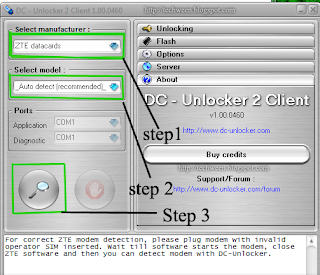
  • Now Run the file dccrap.exe from the extracted folder see the pic below.
How to unlock ZTE MF190
  • Now under the section select manufacturer select "ZTE datacard", step1 in picture below. 
  • Now under the section Select model let it be default "Auto detect (Recommended)", step2 in picture below. 
  • Now let the com port to be select you can find com port in device manager of your pc see the pic below.


  • Now click on search button as shown in picture above step 3. 
  • After that your usb modem will be detected and shown in message box see the picture below.
  • Now select the unlocking tab and then click on Unlock step 4 in above picture If you modem is unlocked you will receive a message card successfully unlocked.

Congratulation you have learned how to unlock ZTE MF190 usb dongle successfully.

Source:
Read More

Wednesday, September 26, 2012

Hi here is Xperia S Icon Pack for samsung galaxy y. This icon pack is Packed with Some Xperia S icons and some Xperia X10 Icons. This icon set is packed and shared on XDA by senior member hell_lock so thanks him if you like his work. When dev Get The Complete Set, It Will Become To Full Xperia S icon pack below are few screenshot.

screenshot:

Xperia S Icon Pack for samsung galaxy yXperia S Icon Pack for samsung galaxy y

Xperia S Icon Pack for samsung galaxy yXperia S Icon Pack for samsung galaxy y

DOWNLOAD:

Warning:
Use at your own risk!

Install:
Flash it in recovery mode.

In case if you notice Small icons/Bugged Icons then Give suggestions to change the determinate icon on the thread page


Read More

Friday, July 27, 2012

Tutorial to root and unroot samsung galaxy y duos S6102. This tutorial is for the user who have to root samsung galaxy y duos s6102 and not for samsung galaxy y s5360 if you want to root galaxy y s5360 then click here for tutorial. Thanks to Millan.SIS at xda for creating this package here i am only providing tutorial on how to use it. Get custom Rom for galaxy y duos


Warning: Rooting will void warranty of your phone use at your own risk.

Steps to Root Galaxy Y Duos S6102

  • Must backup your data first
  • Download the Rooting File from Here (update.zip) also availavle on xda
  • Copy update.zip file to the SD Card root directory
  • Turn Off your Device and boot in recovery mode by pressing the key Volume Up + Home Button + Power Button together. 
  • when your phone boots in recovery mode will see the Blue Color UI where you can't use Touchscreen. Instead use "Volume Up and Volume Down to move Up and Down". And "Home Button to Select". And "Power Button used to go Back"
  • Then select "Apply Update from SDCard" option and choose "update.zip". from sd card
  • Once Patching is completed successfully reboot your Phone by select "Reboot System Now".
  • If you find "SuperUser" in your app menu your phone successfully Rooted 

Steps to UnRoot Samsung Galaxy Y Duos s6102


If you want to unroot your phone then
Backup your data
Download the UnRooting File from here (unroot.zip)
Follow rest of the steps as above in root section
If you cant find "SuperUser" in your app menu your phone successfully UnRooted.
Read More

Monday, June 18, 2012

Transform the look of Samsung galaxy y s5360 to galaxy S III. Here i have collected the required things from different sources like xda , etc thanks to all the guys who made this possible i am just writing a tutorial how to transform the look of galaxy y to achive the look and feel of samsung galaxy SIII . Tutorial how to Change Icon , Wallpaper, Boot Animation,Video Player of Galaxy Y and achieve look of New Galaxy SIII on galaxy y .

So to achieve the look and feel of galaxy s3 to galaxy y s5360 we will have to add new icons, wallpaper boot animations etc that is provided below in this post first take look Icon pack Preview .

Screen Shot:

Step by step installation instructions along with required data:


  • First of all we will change the icon of galaxy y
  • For this you will have to download Galaxy Slll ICON PACK FROM HERE
  • Now we will have to flash the S3 ICON PACK.zip in recovery mode follow instruction below
  • Trun off your phone then start it by pressing volume up+home+power button.
  • Click on "update from sdcard" then select "S3 Icons Pack xen.zip" file then select reboot. Cong. first step over.
  • Second add galaxy S3 wallpaper to galaxy y.
  • For this you will have to download Galaxy Slll WALLPAPER PACK FROM HERE
  • very easy extract the zip file to sd card and set as wallpaper.
Next changing boot animation of galaxy y 

    changing boot animation of galaxy y
    how to change boot animation of galaxy y
  • You will have to download Galaxy Slll BOOT ANIMATION FROM HERE   .
  • you will have to flash CWM or Stock Recovery Mode with "Slll boot animation xen.zip"
  • Next install the S3 video player on galaxy y
  • For this you will have to download Galaxy Slll VIDEO PLAYER FROM HERE
  • Just install the Apk i hope you can do that easilyCongratulation now you have achieve look and feel of s3 on galaxy y. 
  • Download Galaxy SIII Ringtone from here it is a zip file containing six ring tone you will have to extract this file using file manager like Astro if using mobile or if on pc use winrar to extract it on sd card then play it in music player and set as ringtone
In case if you want to go back to the original look an feel of galaxy y follow the steps to retrieve back.
Download CWM from Link and Flash it.
Download stock icons Link
Now flash stock icons zip file.


Credit:
Thanks to Dev - explodeaamir@xda, ....... for few of this stuffs. Remind me if any mistake in the credit section through comment below and i will update this section.
    Read More
    Related Posts Plugin for WordPress, Blogger...
    Google Google+